
Microsoft Word Formatting Tips
Microsoft Word has many different formatting options. Here are a few key formatting tips to make editing your documents a little bit easier.
Identifying Existing Formatting
Some formatting, like section breaks or page breaks, are hidden formatting you don’t see in the document, but can absolutely have you pulling out your hair when they mess with page numbering, or leaving blank pages in your document you just cannot get rid of.
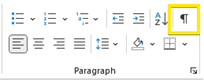
Show/Hide: Located one the Home tab in the ribbon under the “paragraph” grouping, this will show all the hidden markups – most often, I use this to seek out page and section breaks and remove them. Click once to turn on, click it again to turn off.
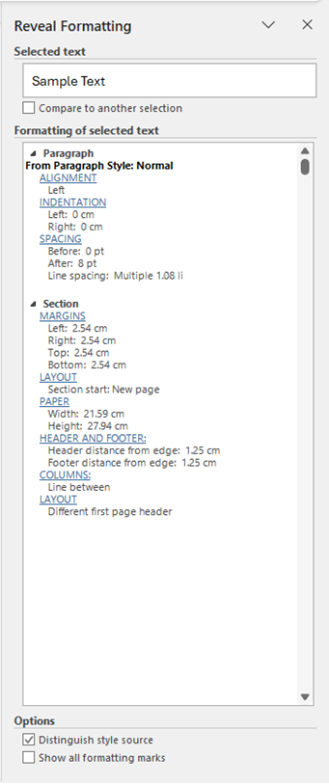
Reveal Formatting: this function is only available through a keyboard shortcut, by using Shift + F1 and will show you the formatting for wherever you click. If you click on the blue underlined headers for the formatting items, they will bring you to the options to adjust the formatting.
NOTE: if you click on “show all formatting marks” this will do the same as the “show/hide” option that was shown above.
Clearing Formatting
There are two ways we’re going to look at getting rid of existing formatting: using the “Clear All Formatting” action or by using the “paste as text only”.
Clear All Formatting Action
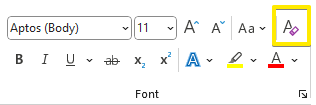
The “clear all formatting” option allows you to clear all main formatting that is different than the standard formatting for your document – this includes special indents, line spacing, font, etc. However, it is important to note that the clear all formatting action will not remove section or page breaks.
Different Paste Options
When you’re copying and pasting between documents, you’re carrying over the formatting from one document to another from wherever you’re copying from when you use the standard paste option (this includes using the CTRL + V keyboard shortcut). If you’re really at your wits end with formatting, a safe bet would be to paste as plain text (keep text only), this scrubs all the formatting from the copied text.
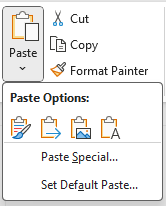
Pasting with the option of “keep text only” will remove all formatting, including any page or section breaks. These same options are available via the additional paste options within the home tab on the ribbon.
*If you roll your mouse over the different paste options without clicking, you will get a preview of how the pasted text will look.
Format Painter
If you aren’t already familiar with the format painter within the Microsoft Office suite, this may be your new favourite tool. The format painter allows you to copy formatting from one area to another – this can be done within the same document or be used across documents.
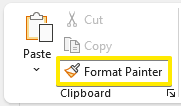
The format painter is found within the clipboard grouping in the home tab on the ribbon and looks like a paint brush. To use, first select the formatting you want to replicate, then click on the format painter, then select the area that you want to apply the formatting to. If you’ll be applying the formatting to more than one area, you can double click the format painter after you’ve selected your source formatting you want to copy and select all the different areas where you would like the source formatting to apply to. Press ESC to stop the format painting when you have it selected to apply to multiple areas.